Googlebook resurrects Android’s classic navigation keys — and it’s a smart move
There’s a common misconception floating around about the new Googlebook keyboards. People see the Quick Insert key and the Google logo key and assume they’re brand-new innovations, fresh out of some secret hardware lab, designed to make laptop users feel like they’re living in the future. But that’s not quite true. Those keys first debuted a couple of years ago on a handful of Chromebooks, and they were quietly making their way into the world before most people ever noticed. So no, the Quick Insert key and the Google logo key are not the real news here.
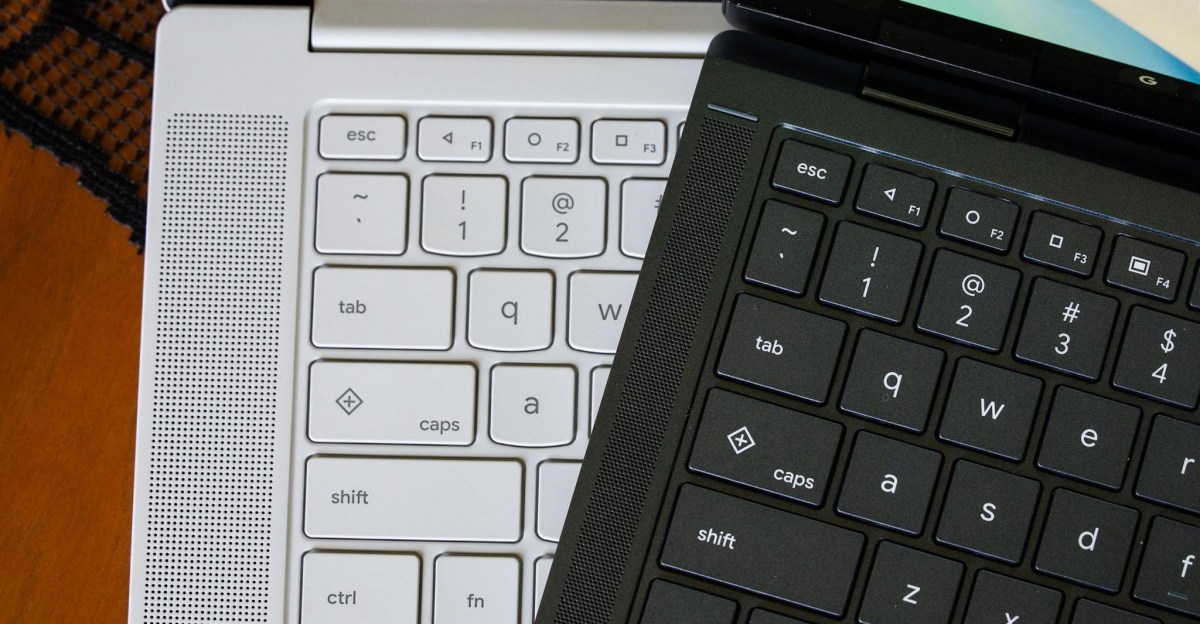
The real news is something much older, much more nostalgic, and frankly much more interesting. On every Googlebook keyboard, the F1, F2, and F3 keys are not just function keys anymore. They are the triangle, circle, and square navigation icons that first appeared on Android 5.0 Lollipop back in 2014. That’s right: the classic Android navigation buttons — the ones that defined a generation of smartphones before gestures took over — have found a new home on the laptop keyboard. And for anyone who grew up with Android phones in the mid-2010s, seeing those three little shapes staring back at you from the top row of a keyboard is a strange and wonderful trip down memory lane.
Let’s take a moment to appreciate what those icons actually are. The left-pointing triangle is the back button. The circle is the home button. And the square is the app switcher button. These three buttons were the backbone of Android navigation for years. Before Android 5.0 Lollipop, many Android phones used physical or capacitive buttons below the screen, but Lollipop made the on-screen navigation bar standard. The triangle, circle, and square became instantly recognizable symbols, as iconic in their own way as the Windows Start button or the Mac Command key. They were simple, functional, and universally understood by anyone who had ever picked up an Android phone.
Eventually, Android moved to gesture-based navigation. Swipe from the edge to go back, swipe up from the bottom to go home, swipe up and hold to see your recent apps. It was smoother, more immersive, and gave users more screen space. But the triangle, circle, and square never truly disappeared. Even now, on Android 17, the three-button navigation layout is still built into the operating system as an alternative for people who prefer it. Some people just like having visible buttons. Some people find gestures too finicky. Some people have muscle memory that goes back a decade. And so the old icons have survived, tucked away in the settings, waiting for anyone who wants them.
Now Google has brought those same icons to the Googlebook keyboard. On Googlebook OS, the F1, F2, and F3 keys do exactly what you would expect if you’re an Android veteran. Press the left-pointing triangle, and you go back. Press the circle, and you go “home” — which on a laptop means minimizing all open apps and showing you the desktop. Press the square, and your open apps tile themselves across the screen, much like Mission Control on macOS or Task View on Windows. It’s a familiar layout, but translated into the world of desktop computing. And it works surprisingly well.
The back button, in particular, is genuinely useful. Anyone who has ever used Android apps on a desktop-style interface knows the pain of trying to navigate an app that wasn’t designed for a mouse. Some Android apps are optimized for touchscreens and mobile layouts, and when you run them on a larger screen, things can get awkward. Buttons might be in strange places. Menus might not respond the way you expect. The mouse cursor might hover over an element that should be tappable but isn’t quite clickable. In those moments, the back button is a lifesaver. It gives you a simple, reliable way to escape whatever rabbit hole the app has led you into. Instead of hunting for a tiny on-screen back arrow or trying to remember the right keyboard shortcut, you just press F1 and you’re out. It’s the kind of fallback that feels obvious once you have it, but you don’t realize how much you need it until it’s there.
The home button is also handy, though it could be even better. Pressing the circle minimizes all open apps and drops you onto the desktop. That’s a clean, straightforward way to clear your screen when you need a fresh start. But here’s the thing: I wish a second press of the home button would bring all your apps back to where they were. You know, like a toggle. Press once to get out of everything, press again to restore everything. That would be a genuinely magical feature. Unfortunately, that’s not how it works. Restoring your previous app layout is handled by a different feature called desktop peeking, and it uses a different keyboard shortcut. So you can’t just double-tap the circle and expect your apps to reassemble themselves. It’s a small disappointment, but it doesn’t take away from the overall usefulness of having these keys on the keyboard.
For Android nerds of a certain age, there’s something deeply satisfying about seeing the triangle, circle, and square live on. These icons are relics of a simpler time in mobile computing, before gestures, before edge-to-edge displays, before everyone was swiping around like they were conducting an invisible orchestra. They represent an era when navigation was explicit, when you could look at a phone and immediately know what to press. Seeing them on a laptop keyboard is a little bit like running into an old friend in an unexpected place. You smile, you nod, and you feel a sudden rush of nostalgia for the days when Android was a little rougher around the edges but also a little more straightforward.
But the presence of these keys is more than just nostalgia. It’s also a reminder that sometimes you need a fallback when Android gets all Android on you. Let’s be honest: Android apps can be unpredictable. They can misbehave. They can open in the wrong orientation, or get stuck in a weird state, or refuse to respond to normal mouse input. When that happens, you need a way out. You need a button that says, “No, I want to go back.” You need a button that says, “Take me home.” You need a button that says, “Show me everything that’s open so I can figure out what’s going on.” The triangle, circle, and square provide exactly that. They are the emergency exits, the safety nets, the familiar landmarks in a sometimes chaotic landscape of Android apps running on a desktop operating system.
There’s also something to be said for consistency. By putting these keys on every Googlebook, Google is ensuring that no matter which model you buy, you’ll have the same navigation experience. You don’t have to learn a different set of shortcuts depending on the manufacturer. You don’t have to wonder whether this particular laptop has the back key or not. It’s just there, on every keyboard, in the same place, doing the same thing. That kind of uniformity is valuable, especially for people who switch between devices or who are trying to build muscle memory.
In the end, the return of the triangle, circle, and square on Googlebook keyboards is a small but meaningful design decision. It honors the past while acknowledging the present. It gives power users the tools they want while also making life easier for anyone who’s ever felt lost inside an Android app. It’s a little bit nostalgic, a little bit practical, and a little bit fun. And it proves that even as technology moves forward, sometimes the best ideas are the ones that have been with us all along. The Quick Insert key and the Google logo key may get all the attention, but the real stars of the Googlebook keyboard are the three little shapes that first taught us how to navigate a smartphone more than a decade ago. Long may they live.